LnRiLWZpZWxke21hcmdpbi1ib3R0b206MC43NmVtfS50Yi1maWVsZC0tbGVmdHt0ZXh0LWFsaWduOmxlZnR9LnRiLWZpZWxkLS1jZW50ZXJ7dGV4dC1hbGlnbjpjZW50ZXJ9LnRiLWZpZWxkLS1yaWdodHt0ZXh0LWFsaWduOnJpZ2h0fS50Yi1maWVsZF9fc2t5cGVfcHJldmlld3twYWRkaW5nOjEwcHggMjBweDtib3JkZXItcmFkaXVzOjNweDtjb2xvcjojZmZmO2JhY2tncm91bmQ6IzAwYWZlZTtkaXNwbGF5OmlubGluZS1ibG9ja311bC5nbGlkZV9fc2xpZGVze21hcmdpbjowfQ==
LnRiLWZpZWxkcy1hbmQtdGV4dFtkYXRhLXRvb2xzZXQtYmxvY2tzLWZpZWxkcy1hbmQtdGV4dD0iYzY2M2NjNjBlOThmZGVlODc3ODQyMWVlOTBhNGI2YTkiXSB7IGZvbnQtc2l6ZTogMTNweDtwYWRkaW5nLWJvdHRvbTogMjBweDsgfSAudGItZmllbGRzLWFuZC10ZXh0W2RhdGEtdG9vbHNldC1ibG9ja3MtZmllbGRzLWFuZC10ZXh0PSJjNjYzY2M2MGU5OGZkZWU4Nzc4NDIxZWU5MGE0YjZhOSJdIHAgeyBmb250LXNpemU6IDEzcHg7IH0gLnRiLWZpZWxkW2RhdGEtdG9vbHNldC1ibG9ja3MtZmllbGQ9IjA0MGZhOGU4YmI2ZGM2Yzc5NTE2YTgxY2Q0ZjFlYzNkIl0geyBmb250LXNpemU6IDEzcHg7Zm9udC1zdHlsZTogaXRhbGljOyB9ICAudGItZmllbGRbZGF0YS10b29sc2V0LWJsb2Nrcy1maWVsZD0iMDQwZmE4ZThiYjZkYzZjNzk1MTZhODFjZDRmMWVjM2QiXSBhIHsgdGV4dC1kZWNvcmF0aW9uOiBub25lOyB9IC50Yi1maWVsZFtkYXRhLXRvb2xzZXQtYmxvY2tzLWZpZWxkPSIwOTM1N2EzMDllZWViZjE5ZGI2NzViYWM2ZTg3NjI3OSJdIHsgZm9udC1zaXplOiAyNHB4O2ZvbnQtd2VpZ2h0OiBib2xkO2NvbG9yOiByZ2JhKCAxMDIsIDEwMiwgMTAyLCAxICk7IH0gIC50Yi1maWVsZFtkYXRhLXRvb2xzZXQtYmxvY2tzLWZpZWxkPSIwOTM1N2EzMDllZWViZjE5ZGI2NzViYWM2ZTg3NjI3OSJdIGEgeyBjb2xvcjogcmdiYSggMTAyLCAxMDIsIDEwMiwgMSApO3RleHQtZGVjb3JhdGlvbjogbm9uZTsgfSBAbWVkaWEgb25seSBzY3JlZW4gYW5kIChtYXgtd2lkdGg6IDc4MXB4KSB7ICAgIH0gQG1lZGlhIG9ubHkgc2NyZWVuIGFuZCAobWF4LXdpZHRoOiA1OTlweCkgeyAgICB9IA==
How to add a Shared Mailbox in Outlook and Outlook Web App
4 December 2018
shofar support portal >
How to add a Shared Mailbox in Outlook and Outlook Web App
Can’t find what you are looking for in this post? Please visit forum and let’s chat!
A shared mailbox makes it easy for a group of people to monitor and send email from a public email alias like info@shofaronline.org. When a person in the group replies to a message sent to the shared mailbox, the email appears to be from the shared address, not from the individual user.
Unlike your personal Shofar email address (eg name.surname@shofaronline.org), a shared mailbox have no direct login but is linked to your existing account and displays as a seperate mailbox in your Outlook or Outlook Web App. If you need access to a shared mailbox please email itsupport@shofaronline.org to request access.
Luckily, the people over at Microsoft has made it quite easy to setup and provided us with the following tutorials:
A How to setup and view shared mailbox in Outlook:
https://support.office.com/en-us/article/open-and-use-a-shared-mailbox-in-outlook-d94a8e9e-21f1-4240-808b-de9c9c088afd
B How to setup and view shared mailbox in Outlook Web App: ***
https://support.office.com/en-us/article/Open-and-use-a-shared-mailbox-in-Outlook-Web-App-BC127866-42BE-4DE7-92AE-1EF2F787FD5C
*** Please note:
1 If you are on the new version of the Outlook Web App you will not see your username above your inbox on the left.
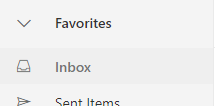
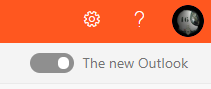
2 You need to turn off the new outlook and go back to the old one (don’t worry, you can just as easily turn it back on afterwards!)
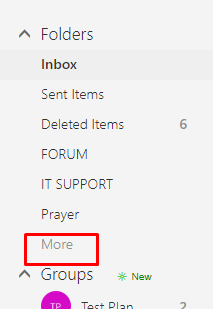
3 Click on the ‘more’ button below your main inbox
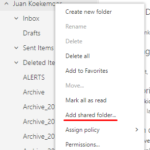
4 Find your account name and right click on it and select ‘Add shared folder…’
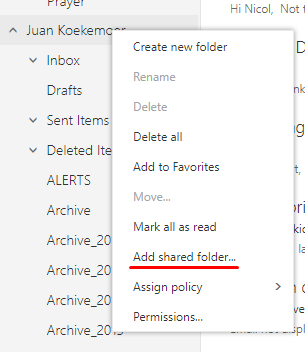
5 Continue with the steps as outlined above in the post B How to setup and view shared mailbox in Outlook Web App.